
Microsoft Teams security now turns on two questions: who can reach your users, and what can leave once they answer. In the Teams intrusions Microsoft’s own threat intelligence has documented since 2023, the attacker gets in through a chat or call from an external tenant. This guide covers external access, Teams DLP limits, file sharing, and the desktop client.
Key takeaways about Microsoft Teams security
- Teams allows chat with every external domain by default, and every Teams help-desk campaign Microsoft documented from 2023 to 2026 reached its target through an external chat or call. A partner-domain allowlist closes more exposure than any detection setting.
- Since January 12, 2026, tenants on default settings block weaponizable file types and flag malicious URLs in Teams. Neither default touches a convincing “IT Support” caller who never sends a file or a link.
- Teams data loss prevention for chat and channel messages requires an E5-class license. E3 covers files shared through Teams, because they live in SharePoint and OneDrive, and leaves the conversation uninspected.
- New Teams on Windows runs inside a WebView2 host, where browser extensions and managed browsers never load, so the desktop client needs a control that reaches its own session.
Microsoft Teams security refers to the controls that decide who can reach your users through Teams and what can leave through it: the tenant boundary, where a stranger from another tenant becomes a trusted contact, and the client session, where a message or file crosses to the other side.
Five mistakes recur across the record: external access open to every domain, trial-only tenants allowed, DLP scoped to users, chat DLP assumed on E3, and the desktop client left to browser tools.
Why Teams Is Now a Primary Attack Channel
Teams is where employees already expect to hear from IT, and Microsoft put its reach at more than 320 million monthly active users on its October 24, 2023 earnings call. That reach is the draw. A Teams chat arrives inside a tool people trust, under a display name the sender picked.
Microsoft Threat Intelligence called the platform “a high-value target for both cybercriminals and state-sponsored actors” in an October 2025 catalog of Teams abuse that runs from Storm-1811 impersonating the help desk to Storm-1674 pushing DarkGate through TeamsPhisher and the VEILdrive operators posing as IT from a compromised company’s accounts.
Each entry point depends on a user engaging with a contact from another tenant. Teams protection isn’t a malware-filtering problem. It’s a reachability problem. And out of the box, “all external domains are allowed,” in Microsoft’s own words. Mistake one is leaving it that way.
Microsoft Teams Phishing: Chats, Calls and External Tenants
Microsoft Teams phishing rarely looks like phishing. It looks like IT doing its job.
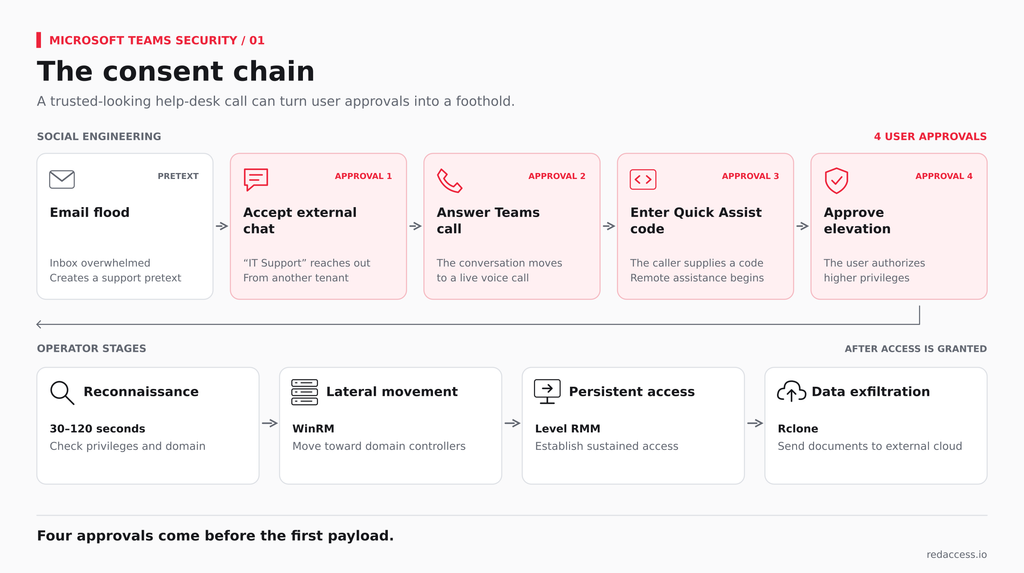
The sequence can open with an inbox full of junk mail, the pretext Storm-1811 and a 3AM ransomware affiliate both used. Then a chat arrives from an external tenant named something like “IT Support,” one of the display names Microsoft recorded for Storm-1811 in 2024. The user accepts, takes a call, opens Quick Assist, and enters a short code the caller supplies. Microsoft’s cross-tenant playbook of April 18, 2026 says that step “is often completed in under a minute.”
Then the operator moves fast: the first 30 to 120 seconds go to checking privileges and domain membership, payloads load through DLL side-loading inside vendor-signed applications, WinRM carries the intrusion toward domain controllers, Level RMM goes in for sustained access, and Rclone ships business documents to external cloud storage. Nine stages. The first one is a chat.
Every step before the payload is a user saying yes: accept the chat, answer the call, enter the code, approve the elevation prompt. Call it the consent chain. A September 2, 2026 Microsoft analysis adds a Teams-native link to it, a “request control” prompt approved during a Teams screen share.
Microsoft has hardened the obvious paths, and the gains are real. Under MC1200576, tenants on default settings got weaponizable file type protection and malicious URL protection switched on from January 12, 2026, on top of the external label and Accept or Block prompt Teams already shows. Phishing protection at the moment of click still matters for the links that do arrive.
But Microsoft’s September analysis says the activity “does not stem from a weakness in Microsoft Teams or its built-in protections.” A URL scanner has nothing to scan in a voice call, and the consent chain never needs a link. The pattern predates the defaults, too: in August 2023, Midnight Blizzard messaged targets from compromised small-business tenants and asked them to enter a code into Microsoft Authenticator, a cousin of the device-code tricks in our breakdown of how attackers get around MFA.
That’s why mistake two matters less than it looks. Blocking trial-only tenants stops a throwaway tenant built for one afternoon, but not a compromised or purchased one, which the October 2025 catalog says attackers now pursue. Only an allowlist does. External and guest access are both third-party access risks and deserve the review a vendor’s VPN account gets.
Teams Data Loss Prevention: Where Native Controls Stop
Teams data loss prevention runs through Microsoft Purview. It works. A policy can block a chat or channel message that matches a sensitive information type, hide its preview, and show the sender a policy tip within seconds. The limits sit in licensing and scope, both documented on Microsoft’s DLP for Teams page (updated August 28, 2026).
| What you want to protect | Purview DLP coverage | License | Condition |
| 1:1 and group chats | Yes | E5/A5/G5, or a qualifying E5 compliance add-on | “Teams chat and channel messages” location selected |
| Standard, private, and shared channel messages | Group scope only | E5-class | User-scoped policies skip channels |
| Messages to external users | Partial | E5-class | Your tenant started the chat |
| Cross-tenant shared channels | Partial | E5-class | Each tenant covers only its own senders |
| Files shared through Teams | Yes | Included in E3 | SharePoint and OneDrive locations included |
| Screen sharing, meeting content, and copy and paste | Not documented on the Teams DLP page | Not stated | Test before relying on it |
Two mistakes live in that table. The first is assuming E3 covers chat: “Support for DLP protection in Teams Chat requires an E5 license.” The second is scoping policy to users, which skips every channel message, including the project channel where agency and vendor work tends to land.
External chats add a third limit. Purview deletes a sensitive message sent to an external user only when your tenant started the chat, and in a cross-tenant shared channel each tenant’s policy evaluates only its own senders. DLP in Teams follows the sender’s tenant. It doesn’t follow the conversation. Closing that gap takes data loss prevention that sees the session as well as the service; Copilot in Teams raises separate questions, covered in our Microsoft Copilot governance guide.
Teams File Sharing Security
Every file posted in Teams is a SharePoint or OneDrive file with a chat attached: channel files land in the team’s SharePoint site, and files shared in a 1:1 or group chat land in the sender’s OneDrive, shared with the people in that chat. That storage model shapes Teams file sharing security more than any Teams setting.
It bites in three places. An agency guest in a project channel gets the team’s file access, folders nobody meant to share included. A design file posted in a shared channel a partner hosts lands in that channel’s own SharePoint site, in the partner’s tenant and under the partner’s rules. A contract dropped into a group chat with a guest stops at E3 DLP only if the policy includes OneDrive.
The controls follow the storage. Set SharePoint and OneDrive external sharing at the tenant level, then apply sensitivity labels to teams to set privacy, guest access, external sharing, and unmanaged-device access. A team’s label governs the container only. Items inside “do not inherit the labels,” so file labeling needs its own policy.
Teams Desktop App Security: The Blind Spot Outside the Browser
Teams desktop app security starts with an engineering fact. Announcing new Teams in October 2023, Microsoft wrote that “using Edge WebView2 as the host for the new Teams app helped us reduce memory usage and disk space.” The classic client ran on Electron; new Teams on Windows runs on WebView2, the Edge rendering engine embedded in a desktop application. For the Mac client, Microsoft says only that Teams “works natively” and doesn’t name a web view.
That host matters to every tool built around a browser. WebView2 renders the page, but the host app decides what loads alongside it. An extension installed in Chrome or Edge doesn’t load inside the Teams client, and a managed browser never renders it, so the chat window, the file picker, and the meeting chat all run in an engine browser controls don’t attach to.
Network controls are told to step aside too. Microsoft’s connectivity principles advise customers to “bypass Microsoft 365 domains from TLS decryption, traffic interception, deep packet inspection, and network packet and content filtering.” Teams traffic is Microsoft 365 traffic. The Teams client is a browser engine. It isn’t a browser your stack can see.
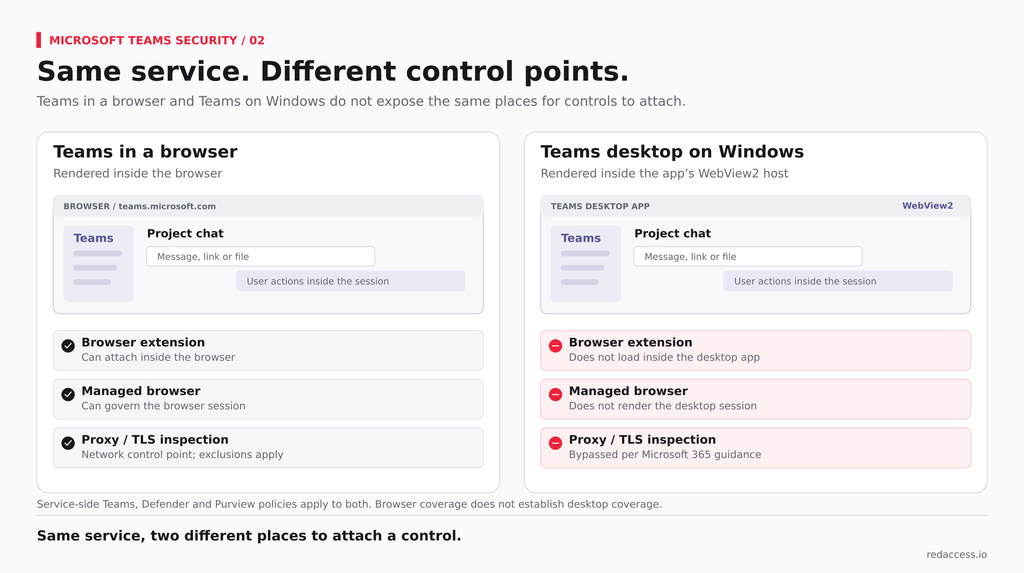
That’s the fifth mistake: treating the desktop client as covered because the browser is. The wider case about what enterprise browsers can’t see has Teams-specific stakes, because the client is where a pasted customer list leaves and a link from “IT Support” gets opened.
Session-layer enforcement reaches the client by a different route. Red Access applies policy inside the session the Teams desktop client opens, through embedded WebView2 sessions, inspecting links, file uploads and downloads, and data entered in the client where the user acts on them. No browser replacement, no extension rollout, no additional endpoint agent.
It doesn’t replace Teams external access policy, Defender for Office 365, or Purview, and it can’t hear a voice call, so it won’t stop a user who is talked into opening Quick Assist; once a remote session hands over the desktop, the intrusion belongs to EDR. Ask any vendor claiming Teams coverage on macOS, us included, to show it working on your build.
Microsoft Teams Security Best Practices Checklist
These Microsoft Teams security best practices run in order of the mistake they close, each with where the setting lives and what it stops.
- Allowlist external domains. Teams admin center > Users > External access > “Allow only specific external domains.” Stops cold “IT Support” chats.
- Block trial-only tenants. PowerShell: Set-CsTenantFederationConfiguration -ExternalAccessWithTrialTenants “Blocked”. Stops throwaway tenants.
- Turn off unmanaged Teams accounts. External access > “People in my organization can communicate with unmanaged Teams accounts.” Stops personal accounts posing as staff.
- Keep messaging safety on. Messaging > Messaging settings > Messaging safety. Stops weaponizable files and known malicious URLs.
- Keep user reporting on. Messaging policies > “Report a security concern.” Since July 15, 2026, it covers suspicious external users too.
- Restrict Quick Assist. Block or uninstall it where Remote Help or another sanctioned tool exists. Breaks the consent chain at remote access.
- Deny outsiders screen control. Meetings > Meeting policies, keep “External participants can give or request control” off, its default. Closes the meeting route to screen-share takeovers.
- Set a help-desk passphrase. A verbal phrase IT and employees share, per Microsoft’s April 2026 guidance. Stops impersonators.
- Scope Teams DLP to groups. Purview > Data loss prevention > Policies, “Teams chat and channel messages,” scoped to groups. Catches channel messages.
- Add SharePoint and OneDrive to file DLP. Same policy wizard. Stops sensitive files leaving through Teams on E3.
- Label every team. Purview > Information protection, labels scoped to groups and sites. Sets guest access and sharing per team.
- Review guests on a schedule. Users > Guest access, plus Entra access reviews (Microsoft Entra ID Governance license). Removes guests whose project has ended.
The checklist closes the tenant boundary, and the client still needs a control in the session, across the browser and desktop apps like Teams and Slack. If you’re mapping where your Teams controls stop on the desktop, a 7-day session-layer visibility assessment from Red Access shows what actually leaves the Teams client, the links users click, the files they upload, and the data they paste, before it does, with no agents, no browser changes, and no disruption to users. Talk to Red Access →
FAQs
Can external users message my employees in Teams by default? Yes. Microsoft’s documentation states that “by default, all external domains are allowed,” so a user in any other Microsoft 365 tenant can find your employees and request a chat. Teams shows an external label and an Accept or Block prompt first. An allowlist of partner domains removes the request. Users never see it.
What’s the difference between external access and guest access in Teams? External access lets people in another tenant chat, call, and meet with your users from their own tenant. Guest access adds them to your tenant as guest accounts with access to teams, channels, and files. External access is the bigger phishing surface. Guest access is the bigger file exposure.
Is Microsoft Teams end-to-end encrypted? Partly. Teams encrypts data in transit and at rest. End-to-end encryption is available for one-to-one calls without extra licensing, and for meetings of up to 200 participants when the organizer has Teams Premium. Chat messages aren’t part of that feature.
Is the Teams desktop app safer than the web version? Neither is safer by default, since external access, Defender, and Purview policies apply on the service side to both. The difference is what your own tools can see. A browser tab sits inside your browser controls; the Windows desktop client runs in a WebView2 host where your browser’s extensions don’t load, so it needs coverage of its own.
Does removing Quick Assist stop Teams help-desk scams? It removes one link in the consent chain. The pretext survives. Microsoft recommends blocking or uninstalling Quick Assist where another remote support tool is in use, but the campaigns it documented also used AnyDesk and Teams screen-share control requests. Pair the block with an external-domain allowlist and a help-desk passphrase.
Sources
- Microsoft Threat Intelligence. (2025, October 7). Disrupting threats targeting Microsoft Teams. Microsoft Security Blog. https://www.microsoft.com/en-us/security/blog/2025/10/07/disrupting-threats-targeting-microsoft-teams/
- Microsoft Defender Security Research Team & Microsoft Defender Experts. (2026, April 18). Cross-tenant helpdesk impersonation to data exfiltration: A human-operated intrusion playbook. Microsoft Security Blog. https://www.microsoft.com/en-us/security/blog/2026/04/18/crosstenant-helpdesk-impersonation-data-exfiltration-human-operated-intrusion-playbook/
- Microsoft Security Research. (2026, September 2). Impersonating IT support: How threat actors turn a remote session into enterprise-wide access. Microsoft Security Blog. https://www.microsoft.com/en-us/security/blog/2026/09/02/impersonating-it-support-threat-actors-turn-remote-session-into-enterprise-wide-access/
- Microsoft Threat Intelligence. (2024, May 15). Threat actors misusing Quick Assist in social engineering attacks leading to ransomware. Microsoft Security Blog. https://www.microsoft.com/en-us/security/blog/2024/05/15/threat-actors-misusing-quick-assist-in-social-engineering-attacks-leading-to-ransomware/
- Microsoft Threat Intelligence. (2023, August 2). Midnight Blizzard conducts targeted social engineering over Microsoft Teams. Microsoft Security Blog. https://www.microsoft.com/en-us/security/blog/2023/08/02/midnight-blizzard-conducts-targeted-social-engineering-over-microsoft-teams/
- Microsoft. (2025, December 19). MC1200576: Teams admin center: Messaging safety defaults changing to “On” by default. Microsoft 365 Message Center. https://mc.merill.net/message/MC1200576
- Microsoft. (2026, August 28). Data loss prevention and Microsoft Teams. Microsoft Learn. https://learn.microsoft.com/en-us/purview/dlp-microsoft-teams
- Microsoft. (2025, November 19). Manage external meetings and chat with people and organizations using Microsoft identities. Microsoft Learn. https://learn.microsoft.com/en-us/microsoftteams/trusted-organizations-external-meetings-chat
- Microsoft. (2026, July 15). Release notes for Microsoft Teams admin features. Microsoft Learn. https://learn.microsoft.com/en-us/officeupdates/teams-admin
- Microsoft. (2026, July 28). End user reporting for security. Microsoft Learn. https://learn.microsoft.com/en-us/microsoftteams/end-user-reporting-security
- Microsoft. (2026, August 26). Microsoft 365 network connectivity principles. Microsoft Learn. https://learn.microsoft.com/en-us/microsoft-365/enterprise/microsoft-365-network-connectivity-principles
- Microsoft. (2023, October 5). Announcing general availability of the new Microsoft Teams app for Windows and Mac. Microsoft Tech Community. https://techcommunity.microsoft.com/blog/microsoftteamsblog/announcing-general-availability-of-the-new-microsoft-teams-app-for-windows-and-m/3934603
- Microsoft. (2023, October 24). Microsoft fiscal year 2024 first quarter earnings conference call. Microsoft Investor Relations. https://www.microsoft.com/en-us/investor/events/fy-2024/earnings-fy-2024-q1