At 9:12 a.m., an employee opens a link to a shared document. Chrome shows no warning. The sign-in page looks exactly like the company’s webmail, logo and all. Nothing on the screen looks suspicious. That’s the problem. Safe browsing at work depends on handling the page nobody has flagged yet, and most dangerous pages are exactly that.
Key takeaways
- Safe browsing has two meanings: the everyday practice of using the web without giving away passwords, data, or a foothold, and Google Safe Browsing, the warning service built into Chrome. They cover different parts of a visit.
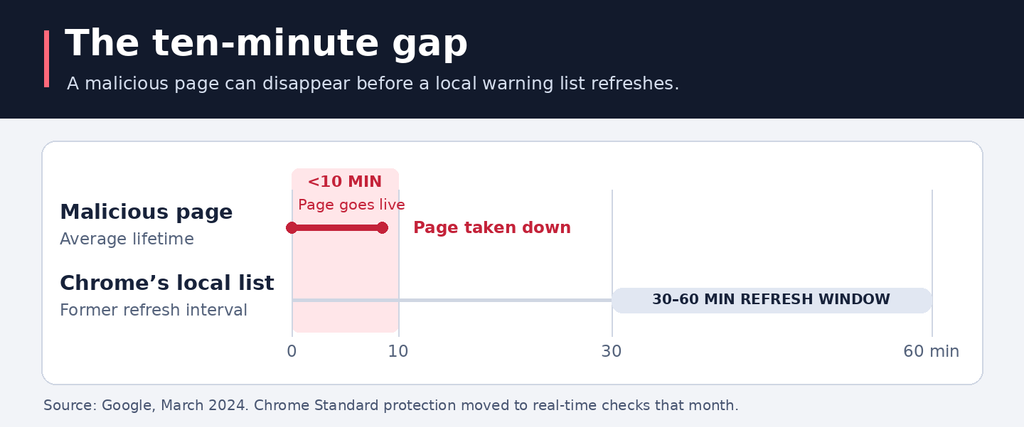
- Google says the average malicious site exists for less than 10 minutes, while Chrome’s on-device list used to refresh every 30 to 60 minutes. Newly created malicious pages can go undetected before reputation lists catch up
- In APWG’s Q2 2026 report, founding member Crane Authentication found SaaS and webmail made up 29.1% of phishing attacks, the most-attacked category in its data. The fake page an employee meets usually copies a tool they sign into every day.
- The common mistake is giving the whole job to one owner. Employees catch what a person can spot, IT locks the settings that shouldn’t be optional, and a session-level control watches the pages neither can judge in time.
Safe internet browsing refers to the habits, browser settings, and controls that stop a work visit to a website from ending in a stolen password, a malicious download, or leaked data. It isn’t only the warning screen, and it isn’t only employee caution. It’s everything that acts between the moment a page loads and the moment someone types into it.
What does safe browsing mean?
The term means two things, and search results mix them. Written in lowercase, safe browsing is a practice: what employees do and what IT enforces so that ordinary web use stays uneventful. Capitalized, Safe Browsing is a Google service. It keeps constantly updated lists of known phishing and malware sites, and Chrome checks them before it opens a page or a download. Microsoft Edge has its own equivalent, Defender SmartScreen.
Google’s service is good at its job, and the numbers back that up. In March 2024, Google said Safe Browsing “already protects more than 5 billion devices worldwide” and assesses more than 10 billion URLs and files every day. That same month it moved Chrome’s Standard protection to real-time checks against Google’s server-side list, and said it expected that change to block 25% more phishing attempts.
The reason for that change is the more useful number. Chrome’s on-device list “is updated every 30 to 60 minutes,” Google wrote, “but we’ve found that the average malicious site actually exists for less than 10 minutes.” A reputation list can only warn about a page someone has already seen and judged. Call the window before that happens the ten-minute gap. Real-time checks narrow it. They can’t close it. The first common mistake is treating the Safe Browsing toggle as the whole job.
Common risks of unsafe browsing
The second mistake is picturing risk as a shady website. A malicious page often looks like a familiar workplace tool. In APWG’s Phishing Activity Trends Report for Q2 2026, APWG founding member Crane Authentication found that SaaS and webmail were the most-attacked category, rising from 20% of phishing in Q1 2026 to 29.1% in Q2. APWG logged 1,069,681 unique phishing sites that quarter, up 10.1% from Q1.
The FBI’s 2025 Internet Crime Report shows the same pattern from the victims’ side: phishing and spoofing drew 191,561 complaints, more than any other crime type.
Four outcomes cover most of what goes wrong. The first is a stolen login. A fake sign-in page captures the password, and the better kits relay the MFA prompt in real time, which is how fake login pages get past MFA. The second is a malicious download: a fake installer, a fake browser update, or an ad that leads to a lookalike vendor site. Our article on how fake updates and ads deliver malware covers that chain step by step. What lands is often malware built to steal saved logins and session cookies.
The third is a browser extension that reads more than it should. The fourth is quieter. An employee pastes customer data into a site they don’t recognize because it promised to reformat a spreadsheet. None of the four needs a browser exploit. Each needs a person to take one ordinary step on an unfamiliar page.
Tips for safe internet browsing (for employees)
These tips are for anyone who uses a browser for work. The mistake they fix is trusting how a page looks. Attackers can easily copy the appearance of legitimate websites, so employees should focus on details that are harder to imitate.
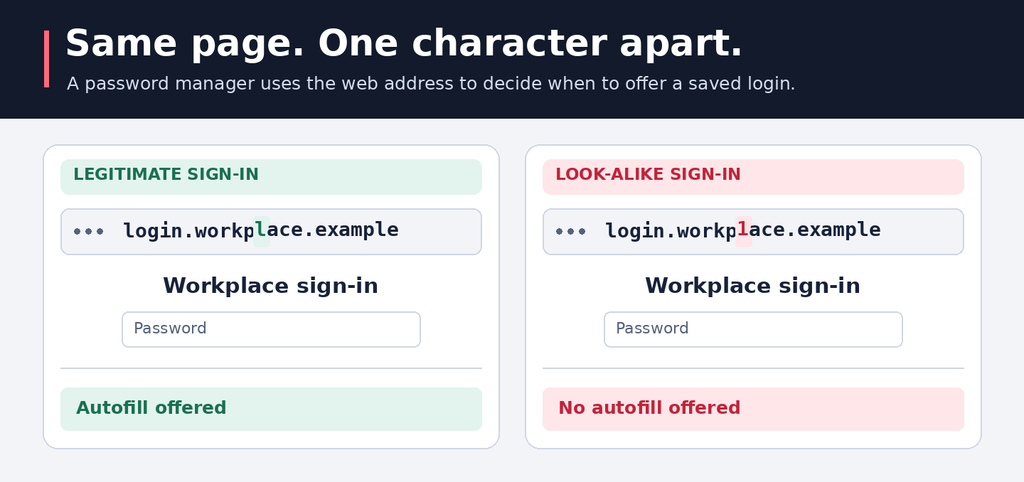
- Before you type a password, read the address, not the page. Look-alike domains swap or add one character or put the real brand in the wrong place, like a company name followed by “-login” and a strange ending.
- When a file is shared with you, open it from the app you already use. A “document shared with you” email is one of the most common lures. If the file is real, it will be waiting in your drive or inbox.
- Let your password manager be the lookout. It matches the saved web address exactly. If it doesn’t offer to fill your work password on a sign-in page, stop and check before typing it yourself.
- Don’t read the padlock as a safety rating. HTTPS means the connection is encrypted. It says nothing about who runs the site, and phishing pages use it too.
- On hotel, airport, or café Wi-Fi, never enter your work password on the network’s sign-in page. A real Wi-Fi portal asks for a room number or a click, not your company login.
- Install extensions only from your company’s approved list. An extension can read anything its permissions allow, on every page you open. That permission ceiling is set the moment you click “Add.”
- If you typed a password into a page that felt wrong, tell IT right away. Minutes matter. A quick password reset and session sign-out limit what a stolen login can do.
Safe internet browsing practices for IT and security teams
The mistake on the IT side is leaving protective settings as personal preferences. On managed Chrome, admins can set the Safe Browsing level with the SafeBrowsingProtectionLevel enterprise policy and lock it, so nobody turns it off to make an annoying warning go away. Enhanced protection is worth considering. It adds deeper download scans and protection against unknown pages, in exchange for sending more page data to Google, so decide it as policy rather than leaving it to each user.
The ten-minute gap is the reason the rest of the list exists. Since no warning list can judge a brand-new page, the practices that matter most don’t depend on recognizing the page at all. Keep every browser, embedded ones included, on automatic updates and verify the installed versions. Allow extensions by approved ID instead of blocking known-bad ones. Restrict downloads of installers, scripts, and disk images from the web. Roll out a company password manager, because its address matching works on day-zero pages that no list has seen.
Make it easy for employees to report suspicious activity. An employee who admits to a typed password within five minutes is the best detection signal you’ll get. Training that rewards reporting over embarrassment beats one more slide on spotting typos.
Safe browsing on personal and unmanaged devices
Every setting in the previous section depends on a managed browser. On a contractor’s laptop or an employee’s personal machine, there is no admin to lock Safe Browsing on, no extension allowlist to enforce, and no password manager to rely on. That’s the device where the ten-minute gap matters most.
This is where Red Access fits. It applies session-level policy to the work sessions those devices open — detecting and blocking credential entry on lookalike or unapproved sign-in pages, and blocking risky downloads before they land on the device — with no browser replacement, no extension rollout, and no additional endpoint agent. Nothing is installed on the device, so the control doesn’t depend on who owns the laptop.
What employees can do on their own devices is narrower but real. Use a separate browser profile for work, so personal extensions and saved logins never share a window with company apps. Don’t save work passwords in a personal browser’s sync. Keep the browser updating automatically and sign out of work apps when you finish. Treat public Wi-Fi the same way on a personal device as on a company one.
What the company can enforce on a device it doesn’t own is a separate question, with its own tradeoffs between access, privacy, and control. The piece on enforcing policy on personal devices covers one part of it.
Tools that enforce safe browsing
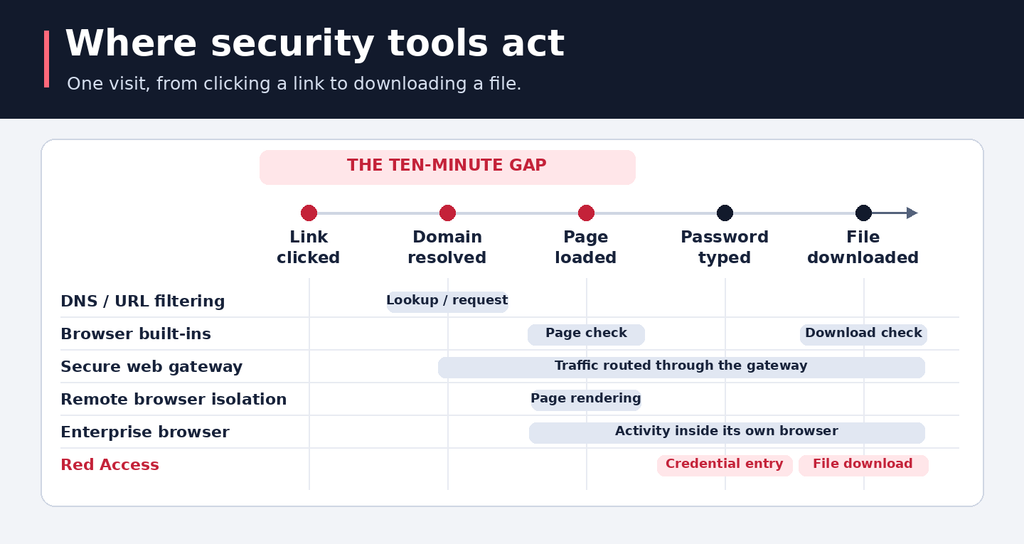
Another common mistake is investing in a security tool that duplicates existing protections. Each category acts at one point in a visit, and the useful question for each is the same: what does it do inside the ten-minute gap, and on which devices?
| Tool category | Where it acts in a visit | What it can’t judge |
| Browser built-ins (Safe Browsing, SmartScreen) | Before the page or download opens | Pages no list has seen yet; settings on unmanaged browsers |
| DNS and URL filtering | When the domain is looked up or requested | A domain registered this morning with no reputation |
| Secure web gateway | On traffic routed through it | Devices and connections that don’t route through it |
| Remote browser isolation | Renders risky pages away from the device | A password typed into a page that renders perfectly |
| Enterprise browser | Inside its own browser | Work done in any other browser or app |
Each of these is a reasonable control where it applies. The gap they share is the moment after a new page loads, on whatever browser the employee happens to use, when a password is typed or a file is fetched.
Red Access works at that moment, inside the live session. It detects and blocks credential entry on lookalike or unapproved sign-in pages, and it blocks risky downloads before they land on the device — across managed and unmanaged machines alike, with no browser replacement, no extension rollout, and no additional endpoint agent.
The boundary deserves the same plain statement as the table. A session-level control, Red Access included, doesn’t stop someone from being talked into a payment over the phone or by text. It doesn’t govern a command pasted into the Windows Run dialog or a terminal, where no browser session exists. It doesn’t replace patching. It covers the visit, which is where the ten-minute gap sits.
FAQ
Is Google Safe Browsing enough for a business? It’s an excellent baseline and should stay on everywhere. It isn’t enough alone, for two reasons. It can only warn about pages someone has already judged, and Google’s own data says malicious sites often live for minutes. And on devices the company doesn’t manage, nobody can guarantee it’s switched on.
Should employees turn on Enhanced protection, and what does it send to Google? Enhanced protection warns about dangerous sites, downloads, and extensions, even ones Google didn’t previously know about. In exchange, Chrome sends Google the URL of each site plus a small sample of page content, extension activity, and system information. Standard protection sends full URLs and bits of page content only when a site does something suspicious. Decide it as company policy, not per user.
Does the padlock or HTTPS mean a site is safe? No. The padlock means the connection between the browser and the site is encrypted, so nobody on the network can read it. It says nothing about who owns the site or what they intend. Phishing pages get certificates as easily as real ones, so check the address instead.
What should an employee do after typing a password into a suspicious page? Report it to IT immediately, then change that password from a known-good device. IT should also sign the account out of active sessions, because some kits steal the session cookie along with the password, and a reset alone doesn’t end a hijacked session.
Is it safe to use public Wi-Fi for work? Mostly, yes, because nearly all work apps use HTTPS and encrypt the connection. The realistic risk is a fake network or sign-in portal that asks for a work login. Connect only to the network the venue names, never enter company credentials on a Wi-Fi page, and use the company VPN if one is required.
The question isn’t simply whether browser warnings are enabled. They provide valuable protection, but they don’t cover every threat. It’s whether anything is watching the first ten minutes. If what you’re mapping is the ten-minute gap — the window between a page going live and a reputation list catching it — see how Red Access covers the session where that gap sits, on managed and unmanaged devices alike →
Sources
APWG. (2026, August 28). Phishing activity trends report, 2nd quarter 2026. https://docs.apwg.org/reports/apwg_trends_report_q2_2026.pdf
Federal Bureau of Investigation, Internet Crime Complaint Center. (2026). 2025 IC3 annual report. https://www.ic3.gov/AnnualReport/Reports/2025_IC3Report.pdf
Google. (n.d.). SafeBrowsingProtectionLevel: Safe Browsing protection level. Chrome Enterprise. https://chromeenterprise.google/policies/safe-browsing-protection-level/
Google. (n.d.). Choose your Safe Browsing protection level in Chrome. Google Chrome Help. https://support.google.com/chrome/answer/9890866
Li, J., & Bawa, J. (2024, March 14). Browse safely with real-time protection on Chrome. Google. https://blog.google/products-and-platforms/products/chrome/google-chrome-safe-browsing-real-time/